How to Export Portfolio
Updated 2026-09-13 · Portfolio · All guides
To analyze your holdings, first export your portfolio from your broker as a CSV file, then upload it on the homepage. Step-by-step guides for Fidelity, E*TRADE, and Schwab are below. Expected headers include Symbol and Current Value, Market Value, or % of Account, and files are limited to 5 MB.
Fidelity
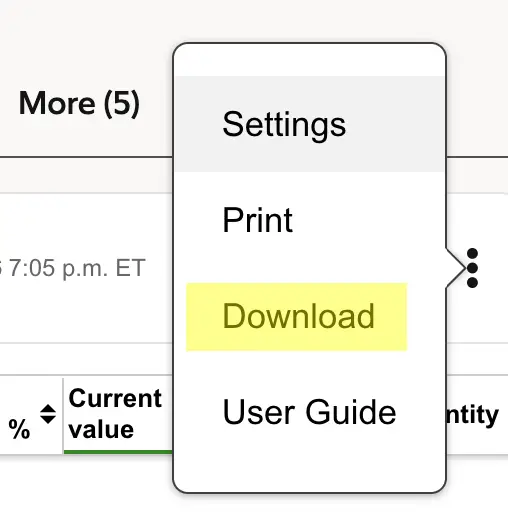
E*TRADE
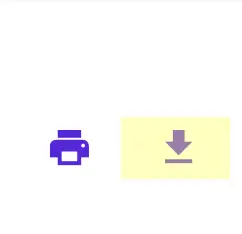
Schwab
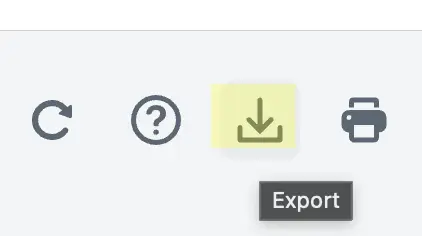
Then upload

Import the Portfolio here. Select the exported file with the Choose File button and upload it. Your portfolio is stored in your browser — open it anytime from the saved portfolio page.
Deep Dive into your allocation
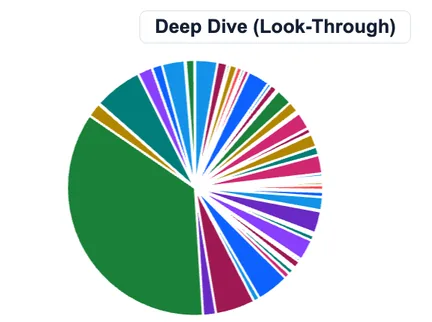
Once the Portfolio is opened, to do a Deep Dive to see the stock allocation for all of your ETFs, mutual funds and stocks combined, click the Deep Dive link above the Pie Chart.
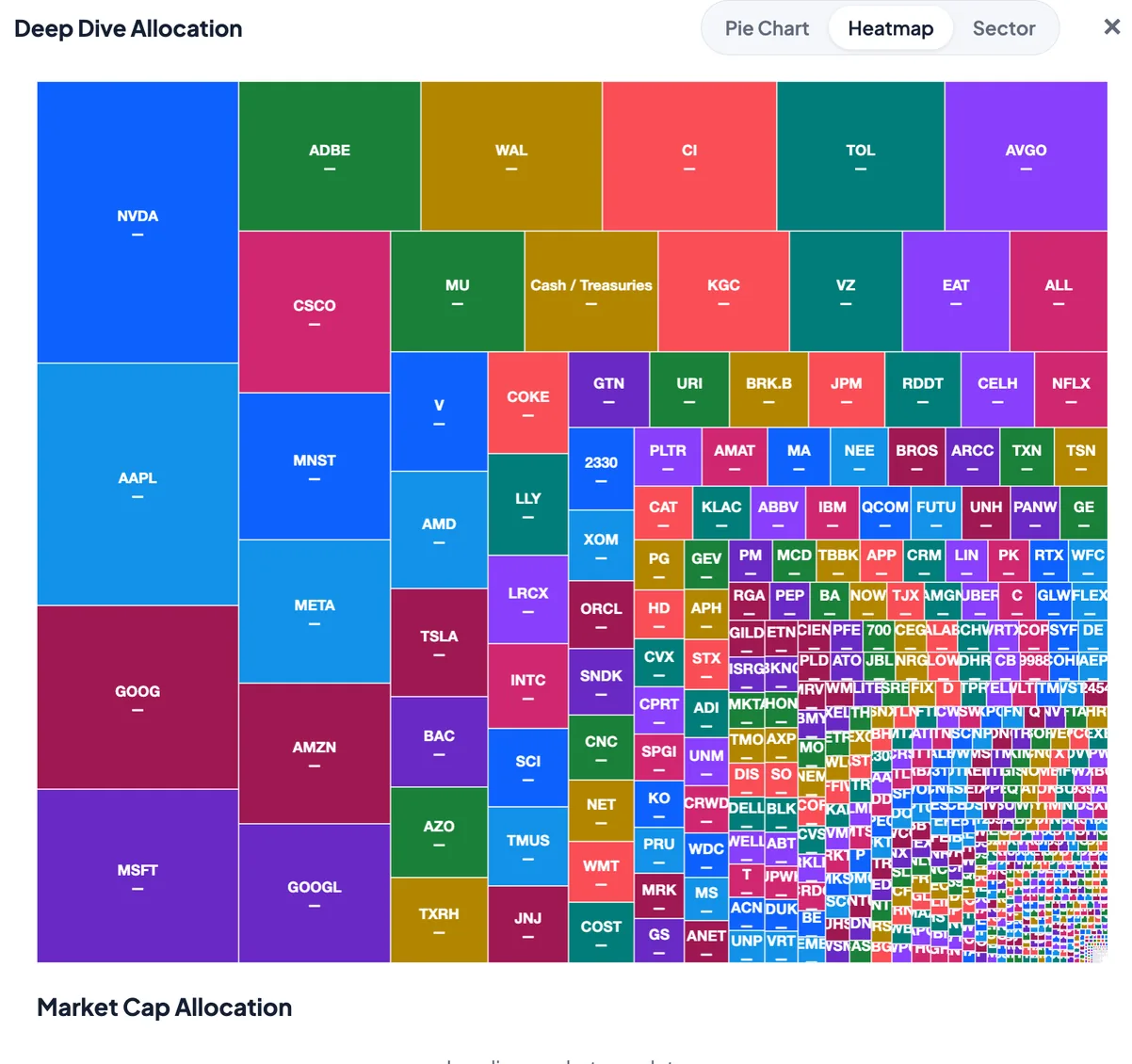
Click either the Pie Chart link or Heatmap to see all of the stocks for holdings. Move the cursor or tap each position to see the % Value and $ Dollar amount for each position.
Adding more portfolios
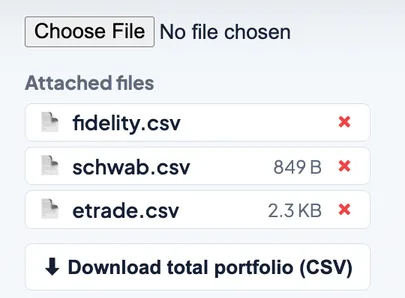
To add more portfolios: multiple portfolios can be added at the bottom of the screen.

To download the total portfolio, click the Download total portfolio button at the bottom of the screen and save to your device. This is important if you frequently clear the browser data / cache.
Portfolios from non-supported brokers
To add portfolios from non-supported brokers: some brokerages may not have export options to export to .CSV, or it may be difficult to find. In such cases, simply take a screenshot of the positions within the brokerage. Send this image to an AI model that supports images, such as Gemini, ChatGPT, or Grok. Ask the AI to convert the image to a .CSV file, then upload that file here.