User Settings
Updated 2026-09-13 · User Settings · All guides
At the top of the DCF Screener or Portfolio page, you will see this gear icon. Press it for the User Settings.

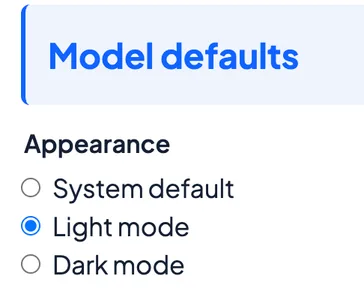
Light or dark mode
The light or dark mode can be set here for the entire website.
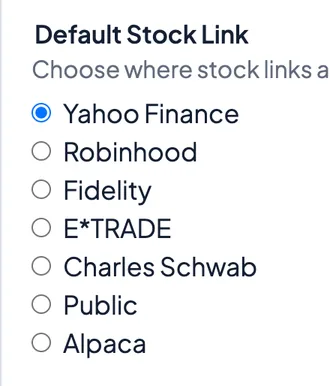
Default stock links
Links such as those on the stock statistics page can be changed to link to various external stock information pages — Yahoo Finance, Robinhood, Fidelity, E*TRADE, Charles Schwab, Public, or Alpaca.
User override model settings
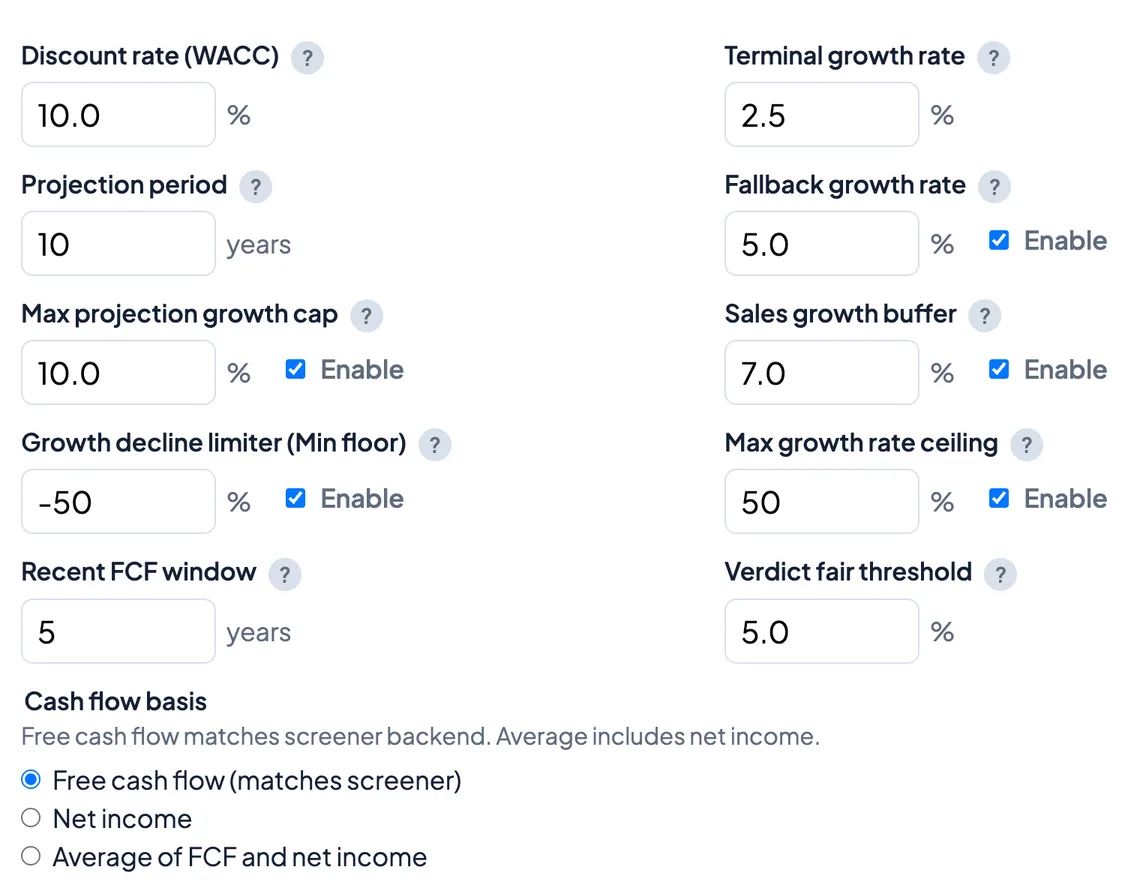
Now for the user override model settings. Changing these values will override the global model parameters. Do this if you want to make the model more aggressive or more conservative. There is a reset icon at the top that will reset to the Global parameters if you want to revert back.
Watch out for the growth cap
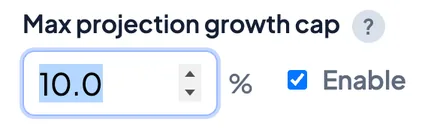
Be aware of this setting. If enabled, it will limit the growth to 10% per year for each year of growth which may lower the valuation significantly. How can you tell this is kicking in for a stock? Look at the example below for Amazon:
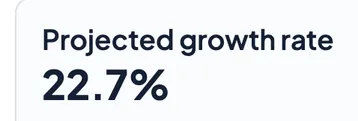
The growth slider in the DCF Valuation page shows 22.7% growth. This should be the future growth rate it is using. However, since we have the 10% cap in place it will limit the growth to 10% (see below).
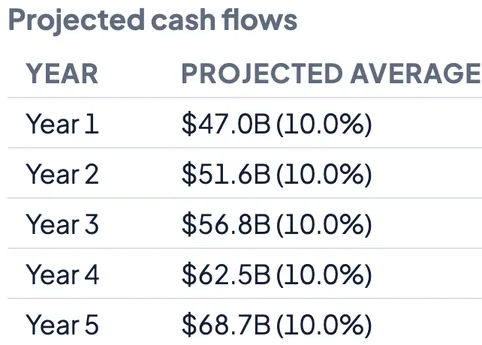
To disable this from happening, uncheck the enable box or set the growth parameters manually for each stock.